Reporting and Actions
This page covers completing reader reports in the viewer, electronic signatures, and modifying signed reports.
Complete a report in the viewer
The production reading pathway opens the external (OHIF) viewer from the uploads list.
Steps
- Open a processed upload from Data → Uploads (click the Upload ID).
- In the viewer, select the report form from the form dropdown (combobox at the top of the report panel).
- Fill in all required fields for that form.
- Click eSign Report.
- Complete the WebAuthn / passkey prompt when the browser asks you to verify your identity.
- After a successful signature, open the Reports panel (brainstorm reports button) to confirm your signed report appears in the list.
You must have a registered passkey before e-signing. See Getting Access.
Electronic signature (e-sign)
E-signing binds your identity to the report at submission time. The platform requires passkey verification (MFA) for e-signatures on studies that enforce it.
When you e-sign, the system records:
- Your user ID and email
- Date and time of signature
- Signature meaning (final interpretation and attestation)
- IP address (when captured)
Signature manifestation
Signed reports display the attestation in every output form:
On screen — open the report from Reports in the portal or viewer. The detail drawer shows a CFR Part 11 E-Signature section with text like:
Final interpretation and attestation by user [id] [email] on [date-time] from [ip]
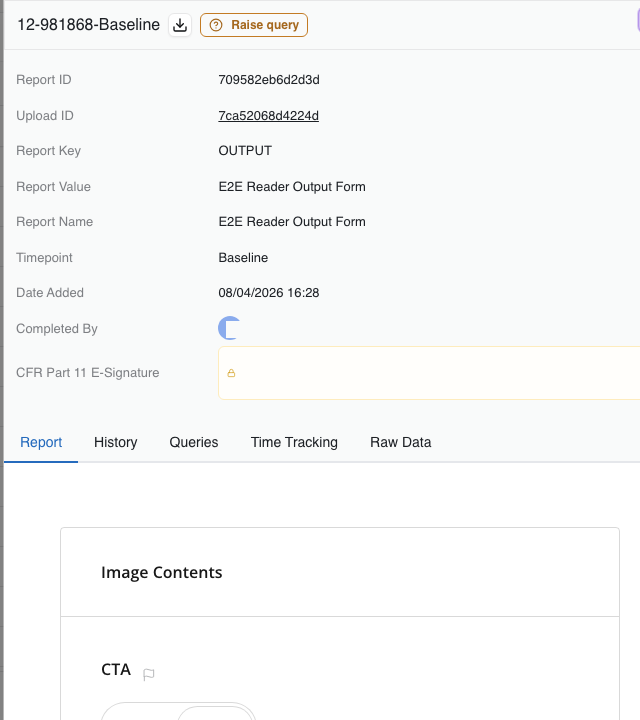
The signer and the attestation text are redacted in this example.
In exports — CSV and Excel reader report exports include the attestation column. See Exporting Data.
In the audit log — admins can verify the same attestation on the study audit trail. See Audit Logs.
Modifying a signed report
Readers can edit their own signed reports:
- Open Reports in the portal (or the report from the viewer Reports panel).
- Open the signed report drawer.
- Change the allowed fields (for example the comment field).
- Click eSign Report again — re-signing is required after any edit.
- The audit log records the update with a new attestation.
Another reader's report is read-only. You cannot modify or re-sign a report another user signed.
Role restrictions
| Action | Reader | Uploader | Admin |
|---|---|---|---|
| Complete and e-sign own report | Yes | No | Yes |
| Modify own signed report | Yes (re-sign required) | No | Yes |
| Modify another user's report | No (read-only) | No | Per study policy |
| View Reports list | Yes | Limited / no sign controls | Yes |
See Roles and Permissions for the full matrix.
Other report actions
Depending on study configuration, admins may also:
- Apply series-level tags where enabled.
- Run adjudication workflows.
- Archive subjects and associated uploads — see Subjects and Records.
Completion workflow
- Confirm you opened the correct upload (site, subject, timepoint, upload ID).
- Complete all required form fields.
- eSign Report with your passkey.
- Verify the report appears in the Reports panel with the attestation visible.
- Notify downstream teams if your process requires handoff after signing.
Good practices
- Double-check subject and upload identifiers before final save.
- Keep report comments clear and action-oriented.
- Use consistent terminology across readers on the same study.
- If e-sign fails, confirm your passkey is registered and your session is active.