Moving to the New System
Brainstorme has moved to a new system. If you used the old portal at
portal.brainstorme.com, you need to set up your account once on the new one at
portal-v2.brainstorme.com. It takes about a minute.
Your studies, your role, and your site access all move with you. You do not need to be re-invited, and an administrator does not have to do anything for you.
Already signed in to the new portal at some point? Then you are done. Nothing on this page applies to you. Just sign in as usual.
Before you start
You need the email address you used on the old system. That address is how we find your studies. If you are not sure which one it was, check for old Brainstorme emails, or ask your study administrator.
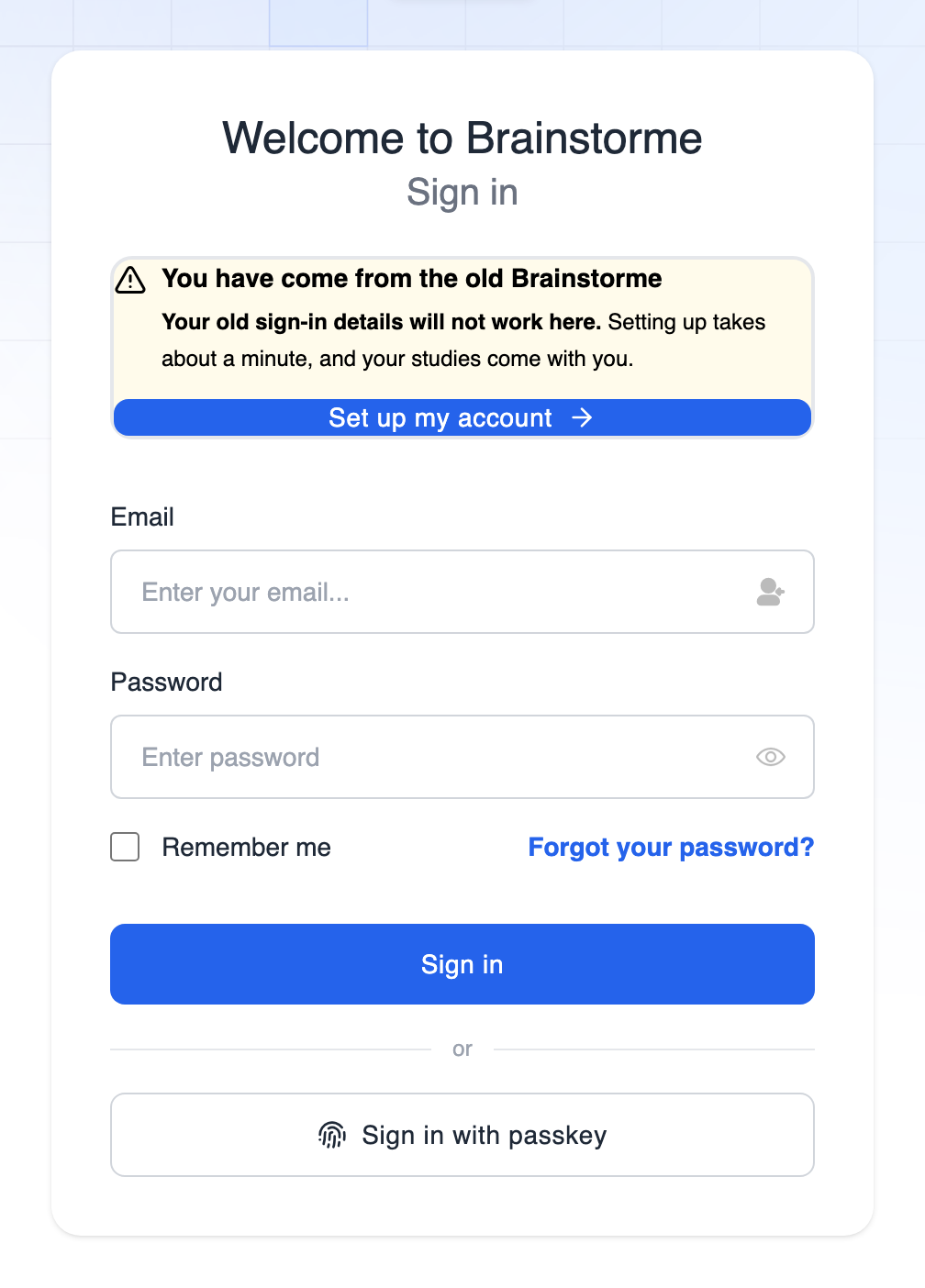
The old portal address now sends you to the new one automatically, so an out-of-date bookmark will still get you to the right place. It lands you on the sign-in page, with a banner offering to set your account up.
Step 1: Ask for a setup link
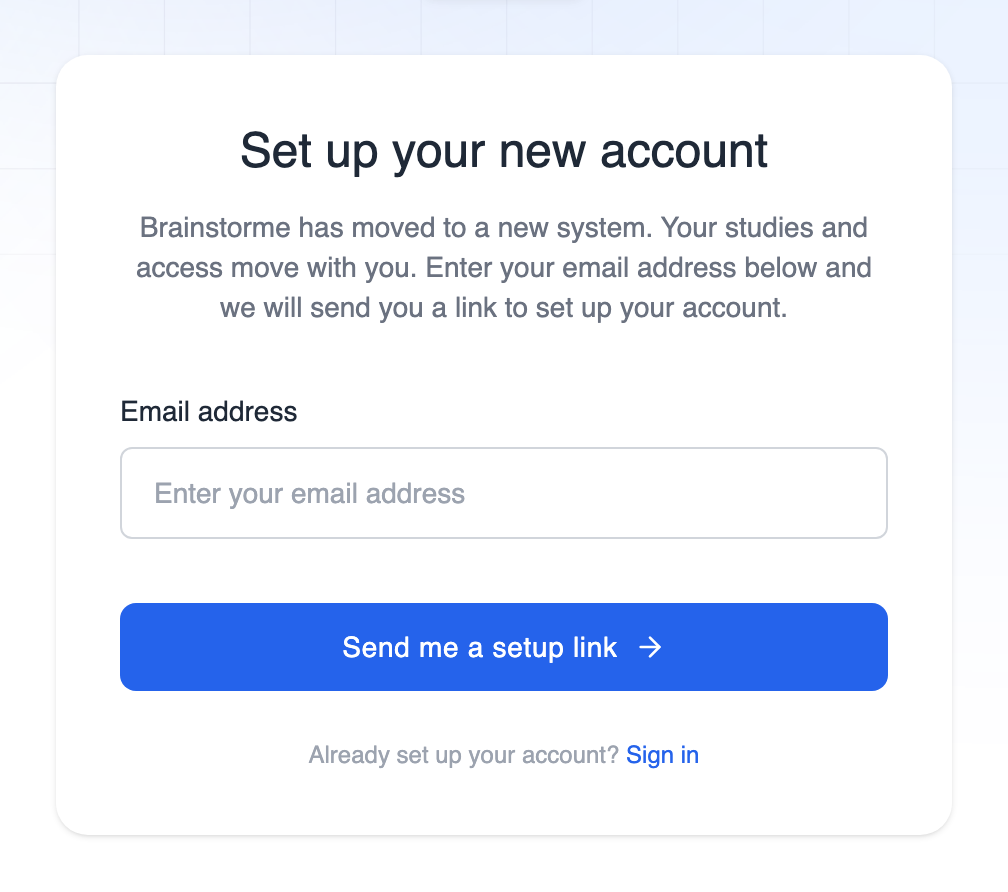
Go to portal-v2.brainstorme.com/login/legacy, enter your email address, and click Send me a setup link.
Step 2: Check your email
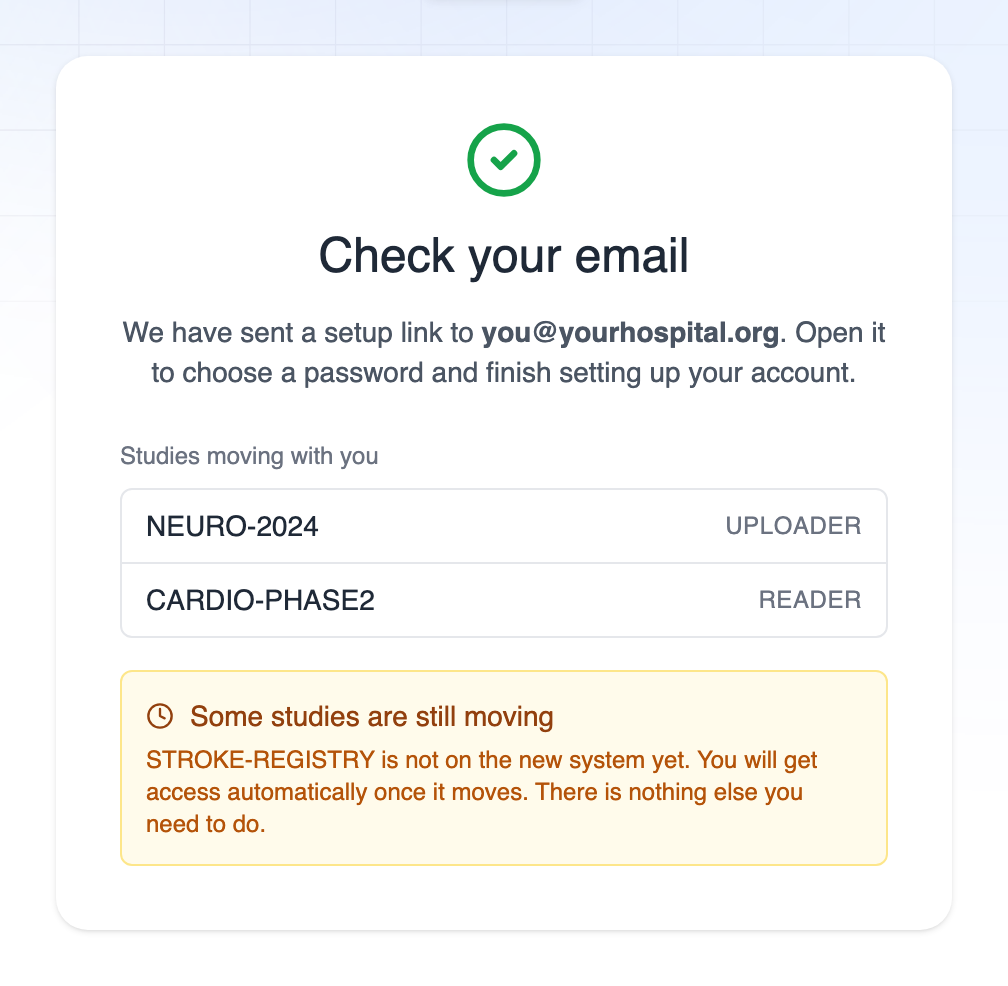
If we find your account, we send a setup link to that address and show you which studies are coming with you.
The email comes from Brainstorme and is the standard invitation email. If it does not arrive within a few minutes, check your spam or quarantine folder.
Step 3: Choose a password
Open the link and choose a password. This is a new password for the new system. Your old password does not carry over, so you cannot reuse it unless you deliberately type the same one.
Step 4: Sign in
That is it. You are signed in and your studies are waiting for you. From now on, sign in normally at portal-v2.brainstorme.com.
What moves, and what does not
Moves with you
- Every study you had access to, as long as that study is already on the new system
- Your role on each study, for example Uploader, Reader, or Admin
- Your site assignments within each study
Does not move
- Your password. You choose a new one in Step 3.
- Passkeys. Passkeys are tied to the website address they were created on, so a passkey registered against the old portal cannot be used on the new one. You can register a new one at any time from Security Settings. See Signing in with a Passkey.
- Sign in with Google. The new system does not offer Google sign-in. If you used it on the old portal, follow the same steps on this page and you will sign in with an email address and password instead.
Administrator-level access above the study level is not granted automatically. If you had it, ask your Brainstorme contact to restore it after you have set up your account.
If something looks different
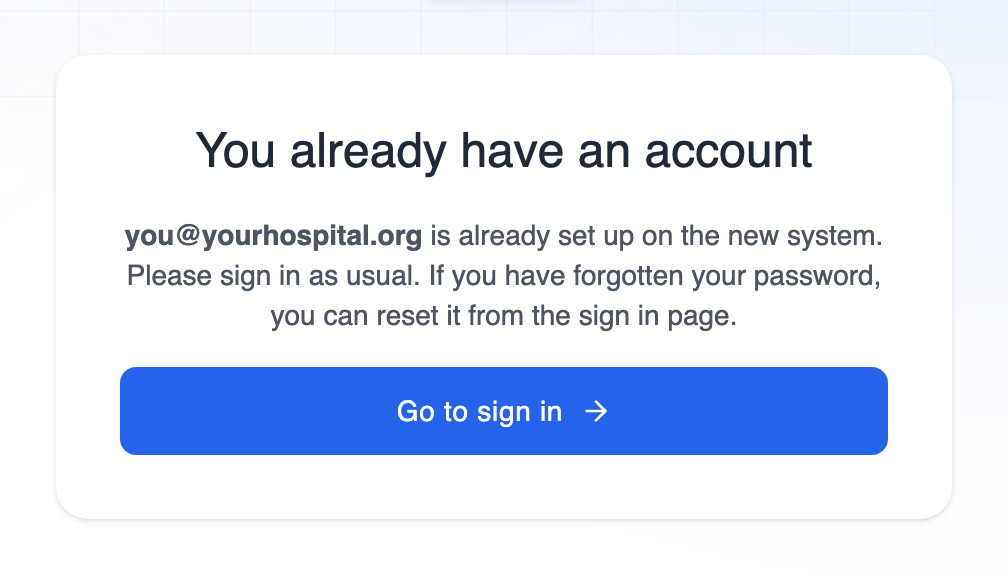
"You already have an account"
Someone has already set your account up, or you set it up earlier and forgot. Sign in as usual, and use Forgot your password? on the sign-in page if you need to.
"We could not find that account"
This nearly always means one of three things:
- A different email address was used on the old system. Try the other address.
- Your study has not moved to the new system yet. Your administrator will know the timing.
- Your access was removed from the old system at some point.
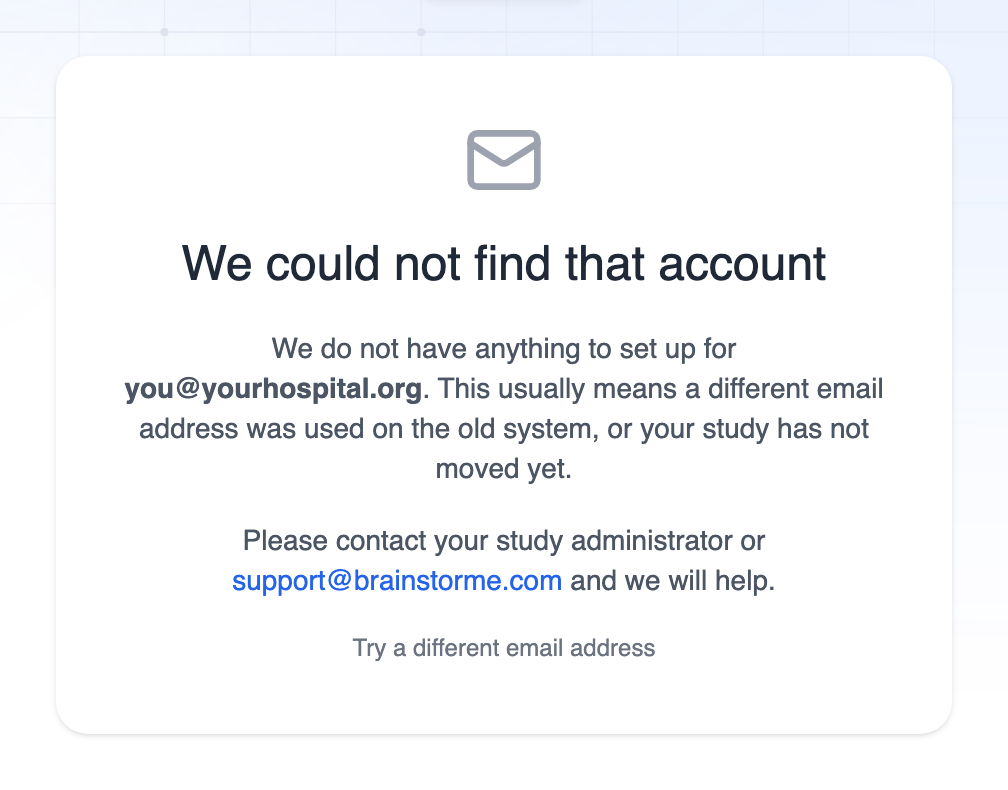
Contact your study administrator or email support@brainstorme.com and we will sort it out.
"Some studies are still moving"
You will see this if you had access to a study that is not on the new system yet. Everything else is set up and ready to use. When the remaining study moves, your access appears automatically. There is nothing you need to do and nothing to ask for.
You tried to sign in and it was rejected
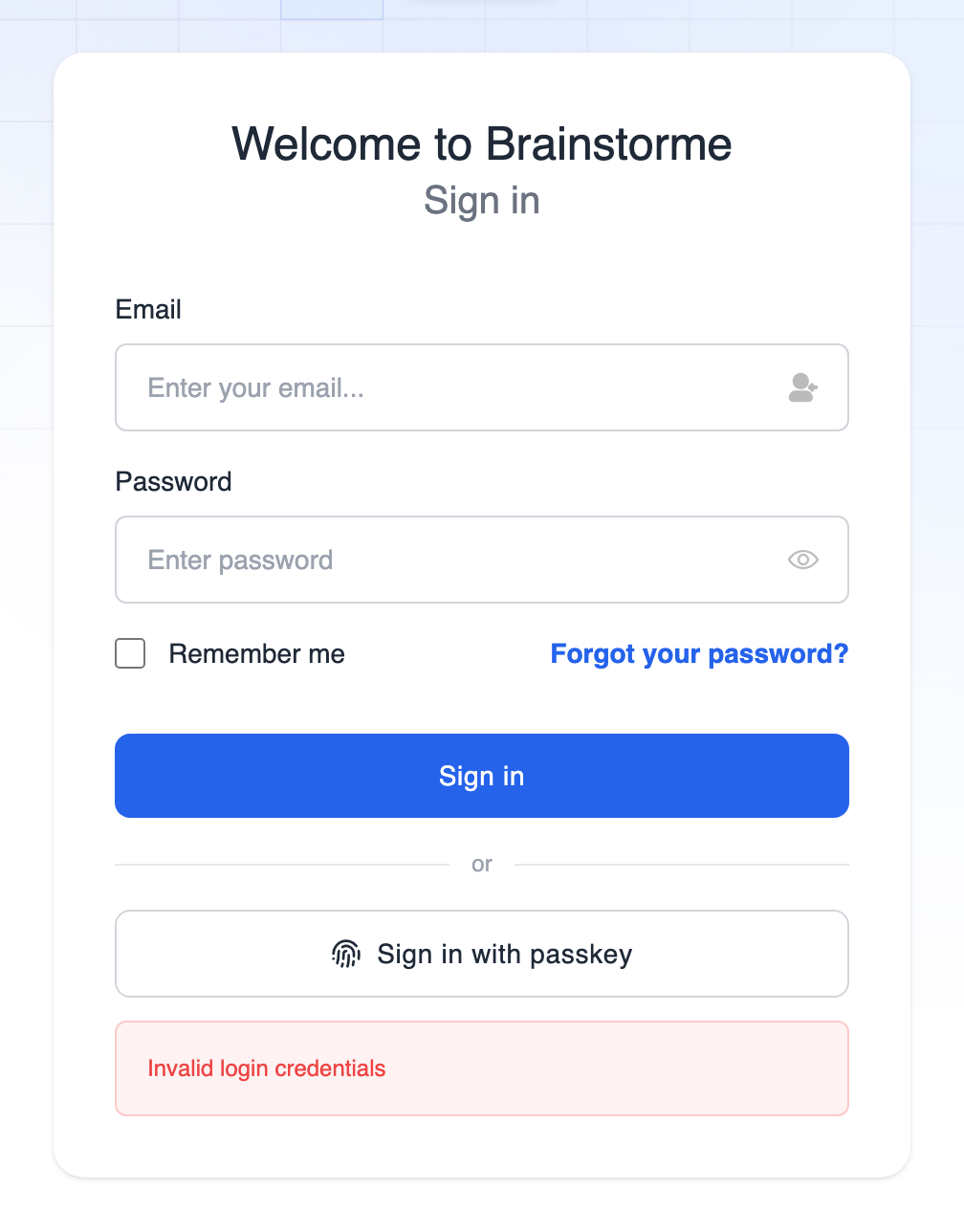
If you followed a link from the old portal and tried your old password, you will see Invalid login credentials along with a reminder that passwords do not carry over. Use Set up my account in that message.
"Too many attempts"
For security, the setup page limits how often it can be used. Wait a few minutes and try again.
Finding the page later
If you followed an old portal.brainstorme.com link, the sign-in page offers account setup at the
top.
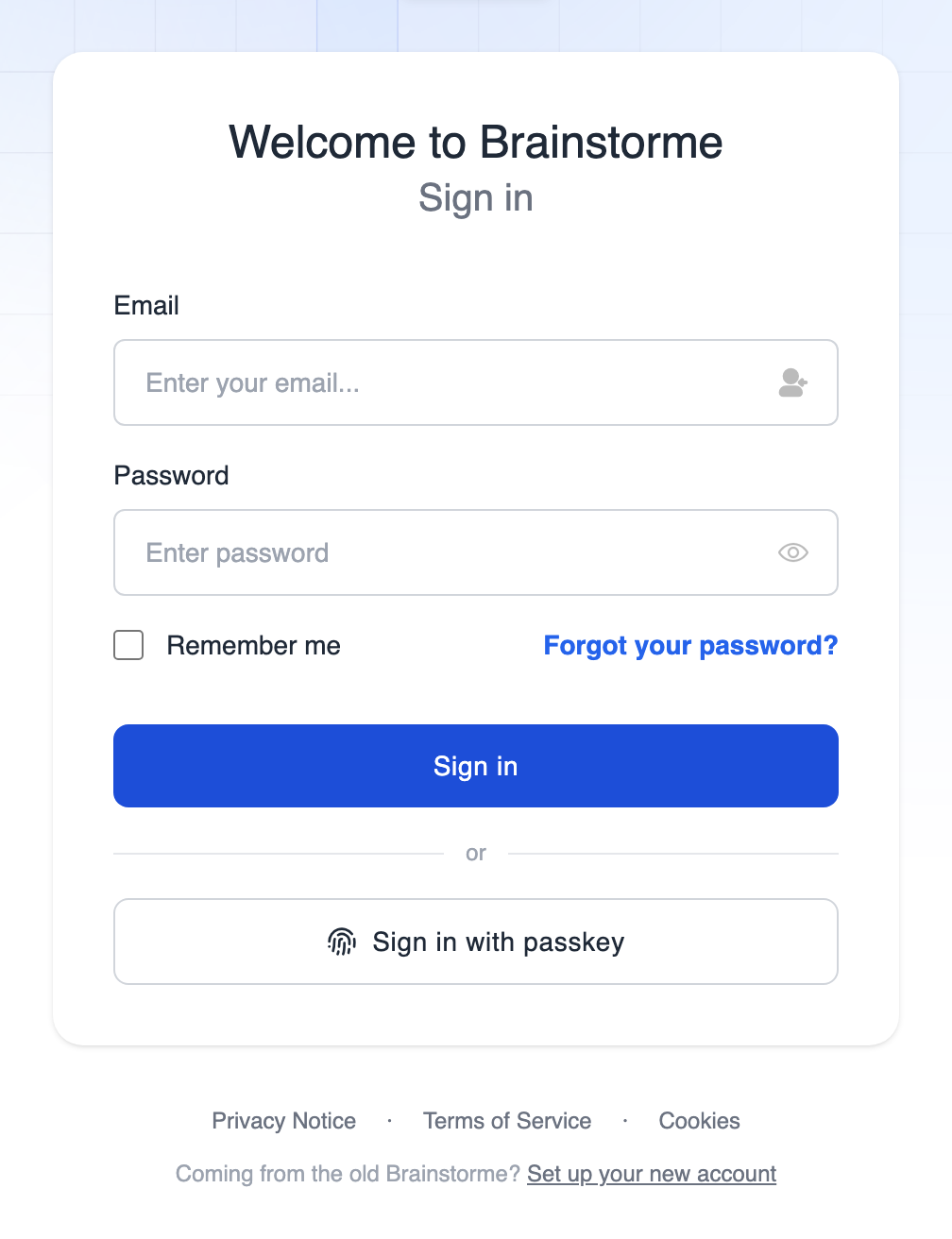
Otherwise the link is always at the bottom of the sign-in page, under the Privacy Notice line.
Common questions
Do I have to do this before a certain date? The old portal no longer accepts sign-ins, so set your account up the next time you need to use Brainstorme.
Will I lose any data? No. Subjects, uploads, reports, and audit history are unaffected by this. Setting up your account changes how you sign in, nothing else.
I had two logins on the old system. If you had more than one account on the same email address, they are treated as one person and all of the access from both is combined.
Can I use the same password as before? Yes, if you remember it and type it in Step 3. Nothing carries it over for you.
Someone new needs access. That is a normal invitation, not a migration. An administrator adds them from the study's user management page. See Getting Access.
Still stuck?
- Check Troubleshooting for general sign-in problems.
- Confirm your role and study access with your administrator, see Roles and Permissions.
- Email support@brainstorme.com with the email address you are trying to use and the name of your study.