Adjudication
When two or more readers read the same case, Brainstorme can compare their answers. If they agree, the agreed answers become the final (consensus) report. If they disagree, the case goes to an adjudicator, who decides the disputed answers.
Which answers must agree, who adjudicates and what happens when readers agree are study decisions. Set them up to match the reading rules in your study's charter (or imaging review charter), and change them only when the charter changes.
When adjudication applies
Adjudication belongs to a reader workflow that needs at least two readers per case (Minimum Required Readers of 2 or more). A workflow that can complete on a single read has nothing to compare, so adjudication can't be added to it.
Once a case's readers have all submitted, their reports are compared:
| Outcome | What happens |
|---|---|
| Readers agree on every compared answer | A consensus report is saved and the case is done. It never reaches the adjudicator (unless auto-close is off, see below). |
| Readers disagree on any compared answer | The case's status becomes <workflow ID>_REQUIRES_ADJUDICATION and it appears in the adjudicator's queue. |
After the adjudicator submits, the status becomes <workflow ID>_adjudication_COMPLETE and the
case leaves the adjudication queue.
Choosing which answers are compared
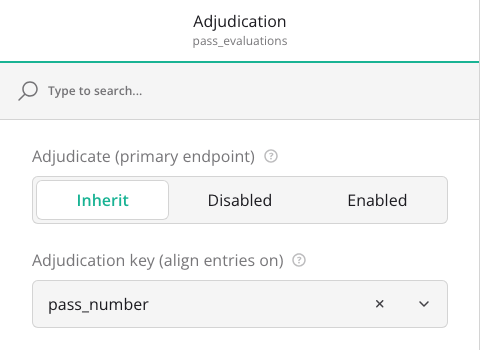
Readers rarely record identical times or free-text comments, so comparing every answer would send nearly every case to adjudication. Instead, the form says which questions readers must agree on. In the form designer, select a question, open its Adjudication settings and set Adjudicate (primary endpoint):
| Setting | Meaning |
|---|---|
| Enabled | Readers must agree on this answer. |
| Disabled | This answer is never compared. |
| Inherit (default) | Follows the rules below. |
The rule for a form:
- If no question is enabled, every answer is compared, except the disabled ones.
- If any question is enabled, only the enabled questions are compared.
- On a panel, the setting applies to every question inside it.
Repeating entries (dynamic panels)
Some forms record a list of entries, for example one per thrombectomy pass. Comparing the whole list at once would mark nearly every case as a disagreement, because times differ on every pass. Instead, set Adjudicate (primary endpoint) on the questions inside the dynamic panel. Each entry is then compared on its own, and only on those questions.
- Adjudication key (align entries on) chooses the question that lines entries up between readers, for example pass number, so that pass 2 is compared with pass 2. Leave it empty to line entries up by position.
- If readers recorded a different number of entries, that is a disagreement, and so is every compared answer in an entry only some readers recorded.
- Setting Adjudicate on the dynamic panel itself instead compares the whole list (Enabled) or leaves it out (Disabled).
Answers that aren't compared
The final report still needs every answer, so answers that aren't compared are taken from one reader: the default reader (R1 unless you choose another role). This applies both when readers agree and to the adjudicator's starting values.
Adding adjudication (admins)
There are two ways:
- When you create the reader pool. The Adjudication section has Create an adjudication workflow ticked by default.
- On an existing workflow. Open the workflow's details, click the ⋯ menu and choose Add adjudication. The option disappears once the workflow has adjudication.
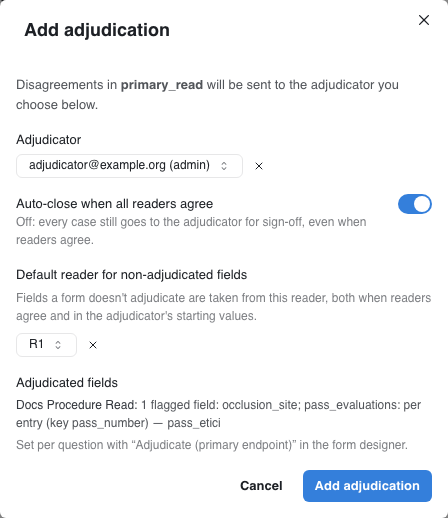
| Field | What it does |
|---|---|
| Adjudicator | The study user (reader or admin) who resolves disagreements. |
| Auto-close when all readers agree | On: agreeing cases close with a consensus report. Off: every completed case still goes to the adjudicator to sign off, with the agreed answers filled in. |
| Default reader for non-adjudicated fields | The role whose answers fill everything that isn't compared. |
| Adjudicated fields | A preview, per form, of what will be compared. Check it against the charter before saving. |
Click Add adjudication. A second workflow, named after the first with Adjudication added (for example Primary Read Adjudication), appears under Uploads in the sidebar with its own count. It works like any reader queue.
Only cases whose reads finish after adjudication is added are routed automatically. For a case that was already complete, or one where a report arrived late, an admin can use Re-run adjudication (the gavel icon in the case's reader workflow panel), which compares the reports again and routes the case.
Adjudicating a case
The adjudicator opens Uploads → workflow Adjudication to see the cases waiting for them. The disagreement itself is the case's Adjudication report: open it from Data → Reports with the Adjudication report type selected (or from the case's reports). Its Proposed Report tab is the form the adjudicator completes.
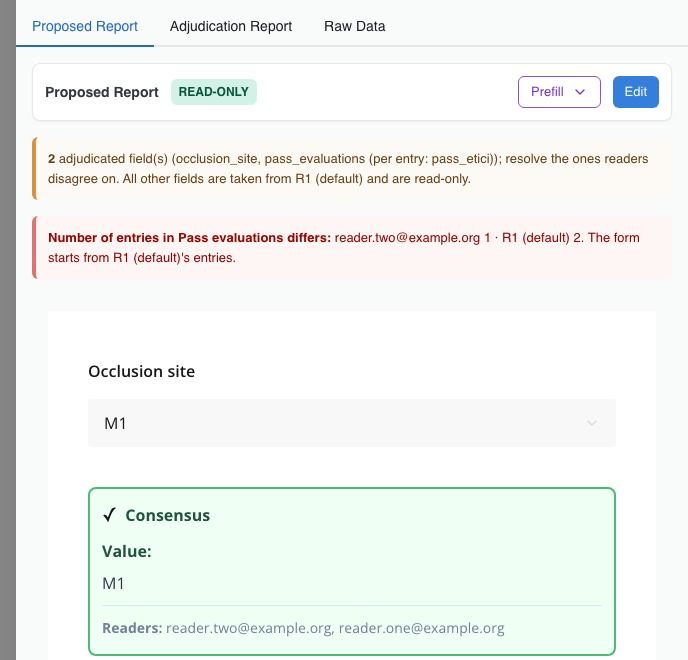
- The orange banner lists the adjudicated fields. Everything else is read-only and comes from the default reader (each such question is marked Not adjudicated — taken from R1 (default)).
- Answers the readers agreed on are marked Consensus, with the readers who gave them.
- A red banner appears when readers recorded a different number of entries in a dynamic panel. The form starts from the default reader's entries.
- Prefill swaps in one reader's answers as the starting point. Adjudicated Values goes back to the default.
For a dynamic panel compared entry by entry, a table under the panel shows each entry and each reader's answer:
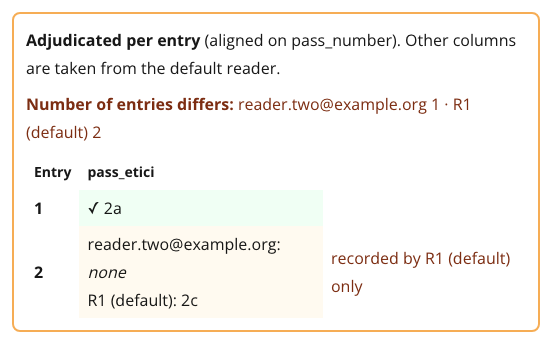
To decide the case, click Edit, fill in the disputed answers, and submit. The submitted report becomes the case's consensus report and the case leaves the adjudication queue.
The Adjudication Report tab lists every reader's answer to every question, and Raw Data shows the stored record.
Exports
- Final answers. Consensus reports, whether readers agreed or an adjudicator decided, are saved
as Reader Output reports named
<form>_CONSENSUS, and are included in standard report exports. - Disagreements. The Adjudication Report export type lists the compared answers side by side, one row per compared field, including one row per entry for dynamic panels.
See Exporting Data for the export options.
Good to know
- Re-reading a case after adjudication. Sending a case back to its readers doesn't put it back in the adjudication queue on its own. Use Requeue Role on the adjudication role as well.
- Statuses change. An adjudicated case ends as
<workflow ID>_adjudication_COMPLETE, not<workflow ID>_COMPLETE. Anything set up to look for the second status (a later workflow, a report filter) won't match adjudicated cases.