Getting Access
Sign-in requirements
- You need an active Brainstorme account (organization email and password).
- Your user role must include the permissions you need for the study — for example Uploader, Reader, or Admin.
- Protected routes require an authenticated session. Unauthenticated visitors are redirected to the login page.
Signing in with email and password
- Navigate to the Brainstorme login page.
- Enter your email (username).
- Enter your password.
- Click Sign in.
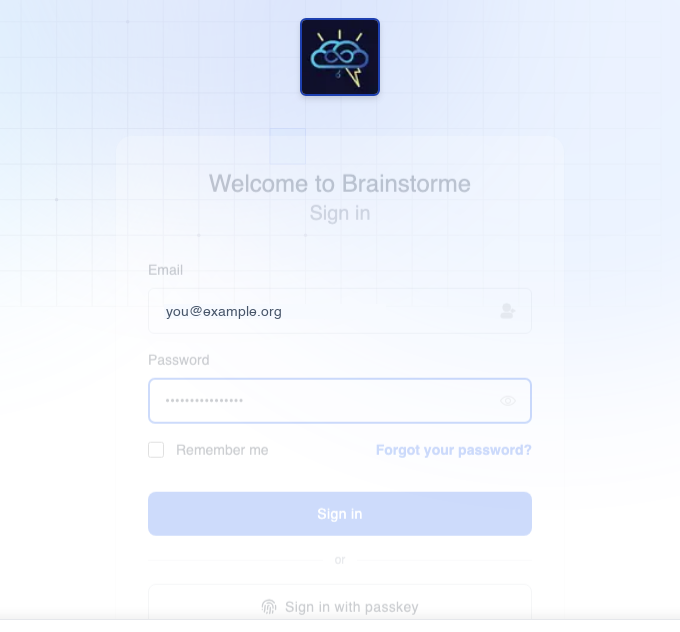
On success, you land in the authenticated portal (/portal/...) with access to your assigned studies.
Prefer not to type a password? Once you've set up a passkey you can click Sign in with passkey on the login page and confirm with your fingerprint, face, PIN, or security key. See Signing in with a Passkey.
Invalid credentials
If the password is wrong, login is rejected with an error message and no session is created. Protected pages such as Audit Logs redirect back to login until you authenticate successfully.
First login checklist
- Sign in with your organization credentials.
- Confirm you can open the portal project list.
- Verify your assigned studies and sites are visible.
- Register a passkey if your study requires MFA for e-signatures (see below).
Passkeys and security settings
Some workflows — especially e-signing reports — require a registered passkey (WebAuthn / FIDO credential).
Register a passkey
- Sign in and open Security Settings.
- Click the passkey registration button (labeled Fingerprint, Passkey, or Security Key depending on your device).
- Follow the browser or OS prompt to create the credential.
- After registration, the security card shows:
- Registered to — your account email
- Credential ID — a truncated identifier (full ID available on hover)
- Registered at — timestamp of registration
Supported authenticators include software vaults, platform biometrics (Touch ID, Windows Hello), and hardware security keys. Register at least one method you can use when e-signing.
Once registered, the same passkey can also be used to sign in without a password — see Signing in with a Passkey.
Hardware security keys
Physical tokens (for example YubiKey) follow the same registration flow in Security Settings. Use a device you will have available when signing reports.
Session security
Inactivity logout
Brainstorme automatically signs you out after 100 minutes of inactivity (no mouse or keyboard interaction). When this happens:
- You are redirected to the login page.
- A message appears: You have been inactive for too long.
- Sign in again to continue.
Expired or terminated sessions
If your session ends — whether from inactivity, signing out, or clearing browser storage — protected actions require re-authentication. Navigating to a protected route redirects to /login until you sign in again.
After an admin changes your role or permissions, sign out and back in so the portal picks up the new access level.
If access is missing
- Confirm you are in the correct organization and study.
- Ask an admin to verify your role assignment (see Roles and Permissions).
- Re-login after permission changes to refresh session state.
- If you cannot register a passkey, confirm your browser supports WebAuthn and that you are on a secure (HTTPS) connection.