Reading and Review
This page covers opening a case in the viewer. For how cases reach a reader's queue, reader roles and batches, see Reading Process.
Open a study in the viewer
Once an upload has finished processing (status no longer PROCESSING):
- Go to Data → Uploads.
- Click Refresh if the status badge has not updated yet.
- Click the Upload ID in the row for the upload you want to review.
The imaging viewer opens in a new browser tab. Wait for series metadata and the viewport canvas to load before starting interpretation.
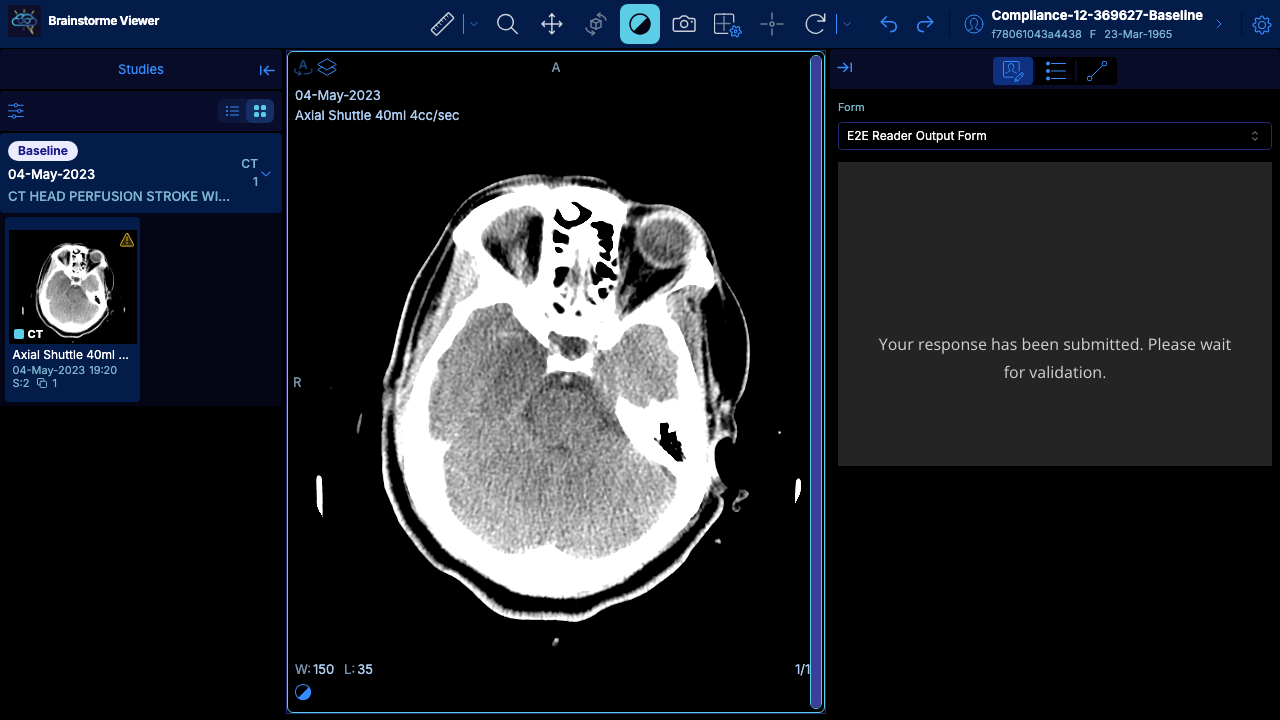
What to confirm before reviewing
- The site, subject, and timepoint match the row you selected.
- Expected series appear in the viewer sidebar.
- The viewport renders imaging (a visible canvas with non-zero dimensions).
If the viewer opens but series are missing, see Troubleshooting.
During review
- Use viewer tools to navigate slices, adjust window/level, and inspect series.
- Keep an eye on selected series labels and study context in the viewer chrome.
- Some studies show onboarding prompts on first open — you can dismiss these with Skip all if shown.
Reports are completed from within the viewer for the production reading pathway. See Reporting and Actions.
Multi-upload subjects
Some subjects have multiple uploads across timepoints or repeat visits.
- Each upload has its own Upload ID and status in the uploads table.
- Open the intended upload before finalizing review notes or e-signing a report.
- Do not assume the most recent row is the correct one — verify site, subject, and timepoint columns.
Reader prerequisites
- Reader or Admin role on the study.
- A registered passkey if the study enforces MFA on report e-signatures.
- At least one report form configured for the study (admin setup).
Uploaders can open uploads in some configurations but typically cannot complete reader reports — see Roles and Permissions.