Exporting Data
The Export Data tab lets study admins and privileged readers download raw or processed study data in several formats. The file is generated on the server and downloaded directly from the portal — no additional tools required. The same export can also be turned into a recurring email — see Scheduled Reports.
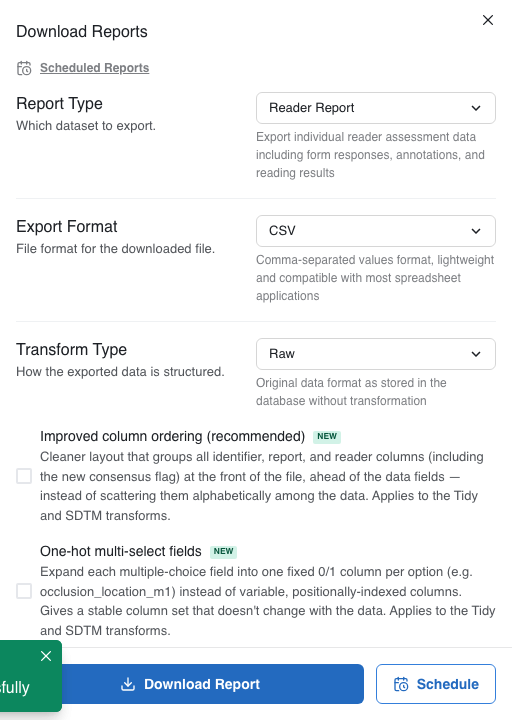
Choosing a report type
| Report type | What it contains |
|---|---|
| Reader Report | Individual reader assessment responses, annotations, and reading results per upload |
| QC Report | Quality-control data collected at upload processing time |
| Adjudication Report | Side-by-side comparison of multiple reader assessments, including discrepancies |
| Subject Metadata | Custom subject-level fields for every subject in the study |
| Subject CRFs | The per-timepoint case report forms sites fill in, one row per subject, instrument and timepoint — see Subject CRFs |
| Upload Reconciliation | A checklist of uploads vs. required timepoints — useful for identifying missing data |
Export format
Choose the file format for the downloaded file:
- CSV — comma-separated, works with Excel, R, Python, and most statistical tools.
- Excel —
.xlsxworkbook with one sheet; preserves numeric types. - JSON — nested JSON array; best for programmatic consumption.
Transform type
Applies to Reader Report, QC Report, Subject Metadata, and Subject CRF exports.
| Transform | Description |
|---|---|
| Raw | Data exactly as stored in the database — no column reordering or flattening |
| Tidy | Flattened, wide-format table following tidy-data principles; one row per report |
| FDA CDISC SDTM | Columns formatted to CDISC SDTM standards for clinical-trial submissions |
Column ordering (group metadata)
When Improved column ordering is enabled (Tidy and SDTM only), all identifier and report metadata columns (subject ID, timepoint, reader, upload ID, consensus flag, etc.) are grouped at the front of the file, ahead of the data fields. Without this option they are scattered alphabetically among the question fields.
One-hot multi-select fields
When One-hot multi-select fields is enabled (Tidy and SDTM only), every multiple-choice question is expanded into one fixed 0/1 column per answer option — for example occlusion_location_m1, occlusion_location_m2 — instead of positionally-indexed columns (occlusion_location_0, occlusion_location_1) whose position depends on how many options were selected per row.
One-hot encoding gives a stable column set that does not change with the data, which is required for the Data Transfer Contract (DTA) manifest.
Filtering by form
Reader Report and QC Report exports normally include every active form. Enable Include only selected forms to choose a specific subset. The form list reflects the study's currently active forms for the selected report key.
Keep newest reports only
When enabled, the export is filtered to include only the most recent report per unique combination of site, subject, timepoint, upload, and reader. Use this when you want one clean row per reading slot rather than the full audit trail of all saves.
DTA defaults
If the study has a Data Transfer Contract (DTA) configured, the Reader Report export automatically pre-fills every field — report format, transform type, one-hot encoding, grouped column ordering, form filter, and keep-newest — from the DTA's saved settings.
A blue banner at the top of the form confirms this:
Defaults loaded from the Data Transfer Contract (DTA v_n_) — override as needed.
You can override any field before downloading. The overrides are not saved back to the DTA.
Drift warning
If the study's current form configuration has changed since the DTA was last exported, a yellow warning banner appears automatically:
Columns have changed from the DTA manifest (v_n_) — you might need a new DTA version.
This is a schema-level comparison — it compares the columns the current forms and settings would produce against the columns frozen in the DTA, so it appears even before any data is exported. The changed column names are listed in the banner. When you see this warning, go to the study's Management → DTA panel and export a new DTA version to capture the changes.
Adjudication exports
Adjudication Report has two additional options:
- Create Adjudication Reports — when enabled, the system generates and saves adjudication records to the platform in addition to downloading the file.
- Timepoint and form exclusions, consensus creation, and existing-report handling are configured in the expanded workflow section that appears when creation is enabled.
Downloading the file
Click Download Report. A progress bar fills while the data is fetched and processed server-side. The file downloads automatically when ready.
Large exports (many subjects, many timepoints, many forms) can take 30–60 seconds. Leave the tab open and do not navigate away while the bar is active.
Scheduling a report
Instead of downloading a report by hand every time, click Schedule (next to Download Report) to email it to a set of recipients automatically on a recurring cadence. The schedule reuses whatever report type, format, and options you have configured in this panel. See Scheduled Reports for setup and management details.