Signing in with a Passkey
A passkey lets you sign in to Brainstorme with your device instead of a password — a fingerprint, face scan, screen PIN, or a hardware security key. It is faster than typing a password and can't be phished or reused.
There are two steps: set up a passkey once (while signed in), then use it to sign in from then on.
Passwords still work. A passkey is an additional, optional way to sign in — you can always fall back to email and password.
Step 1 — Set up a passkey (one time)
You register a passkey from your account, so you must be signed in the normal way first.
- Sign in with your email and password.
- Open Security Settings (from your user menu).
- Click Add Fingerprint / Add Passkey.
- Follow your browser or operating-system prompt to confirm — for example:
- Touch ID / Face ID on a Mac or iPhone
- Windows Hello (fingerprint, face, or PIN) on Windows
- A hardware security key such as a YubiKey
- When it's done, the security card shows Enabled, along with your account email, a short credential ID, and the date you registered.
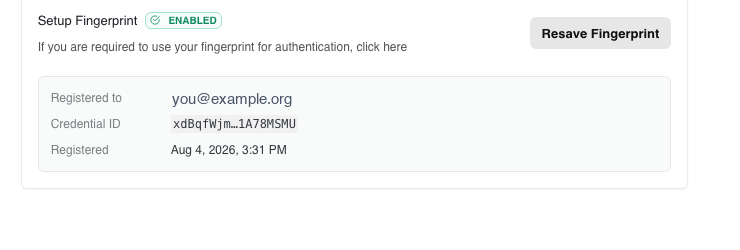
You only need to do this once per device. You can register a passkey on more than one device (for example your laptop and your phone).
Step 2 — Sign in with your passkey
Once a passkey is set up, you don't need to type anything to sign in:
- Go to the Brainstorme login page.
- Below the email and password fields, click Sign in with passkey.
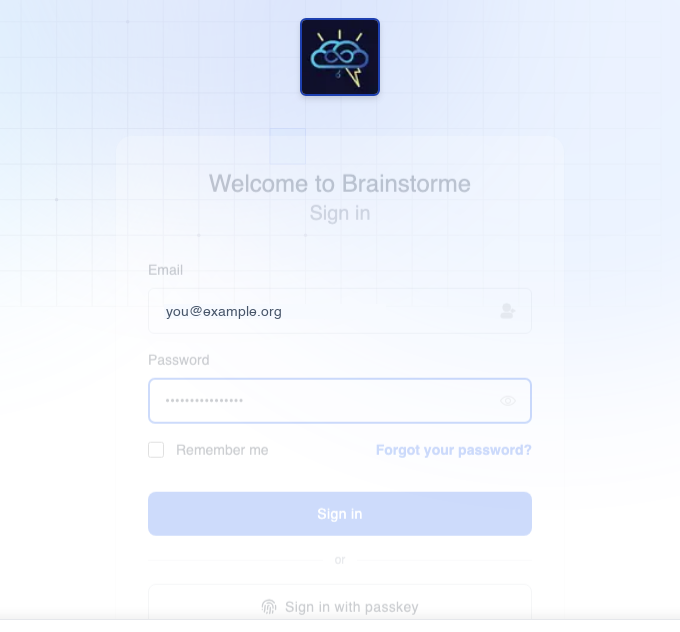 3. Choose your passkey when your browser or device prompts you, and confirm with your
fingerprint, face, PIN, or security key.
4. You're signed straight in and taken to your studies — no email or password required.
3. Choose your passkey when your browser or device prompts you, and confirm with your
fingerprint, face, PIN, or security key.
4. You're signed straight in and taken to your studies — no email or password required.
That's it. The button works the same on every device where you've set up a passkey.
Already had a passkey? Re-save it once
If you registered a passkey before passwordless sign-in was turned on, it will still work for e-signing but won't appear as an option on the login page. To enable it for sign-in, re-save it once:
- Sign in with your email and password.
- Open Security Settings.
- Click Resave Fingerprint / Resave Passkey.
- Confirm with your device when prompted.
After re-saving, Sign in with passkey will find it on the login page.
Troubleshooting
The "Sign in with passkey" button does nothing, or says the passkey isn't found. The passkey may have been created before passwordless sign-in was enabled — re-save it (see above). Also confirm you're using the same device (or a synced account) where you set the passkey up.
No prompt appears / it fails immediately. Passkeys require a modern browser and a secure (HTTPS) connection. Make sure your browser is up to date. If you cancelled the prompt, just click the button again.
I'm on a different computer that doesn't have my passkey. Sign in with your email and password instead, then set up a passkey on that device from Security Settings. (If your passkeys sync across your devices through your Apple, Google, or Microsoft account, your phone may also be offered as an option.)
I lost the device with my passkey. Sign in with your email and password, then register a new passkey on a device you still have. If you've forgotten your password too, use Forgot your password? on the login page.
Related
- Getting Access — sign-in requirements and security settings
- Troubleshooting — general sign-in and access problems